How to Automatically Notify Sales Credit Limit Breaches in Outlook Using Power Automate + Business Central
Why This Matters
If you work in sales or finance, you know how important it is to keep an eye on customer credit limits. Business Central lets you set those limits, but it doesn’t shout at you when someone crosses the line.
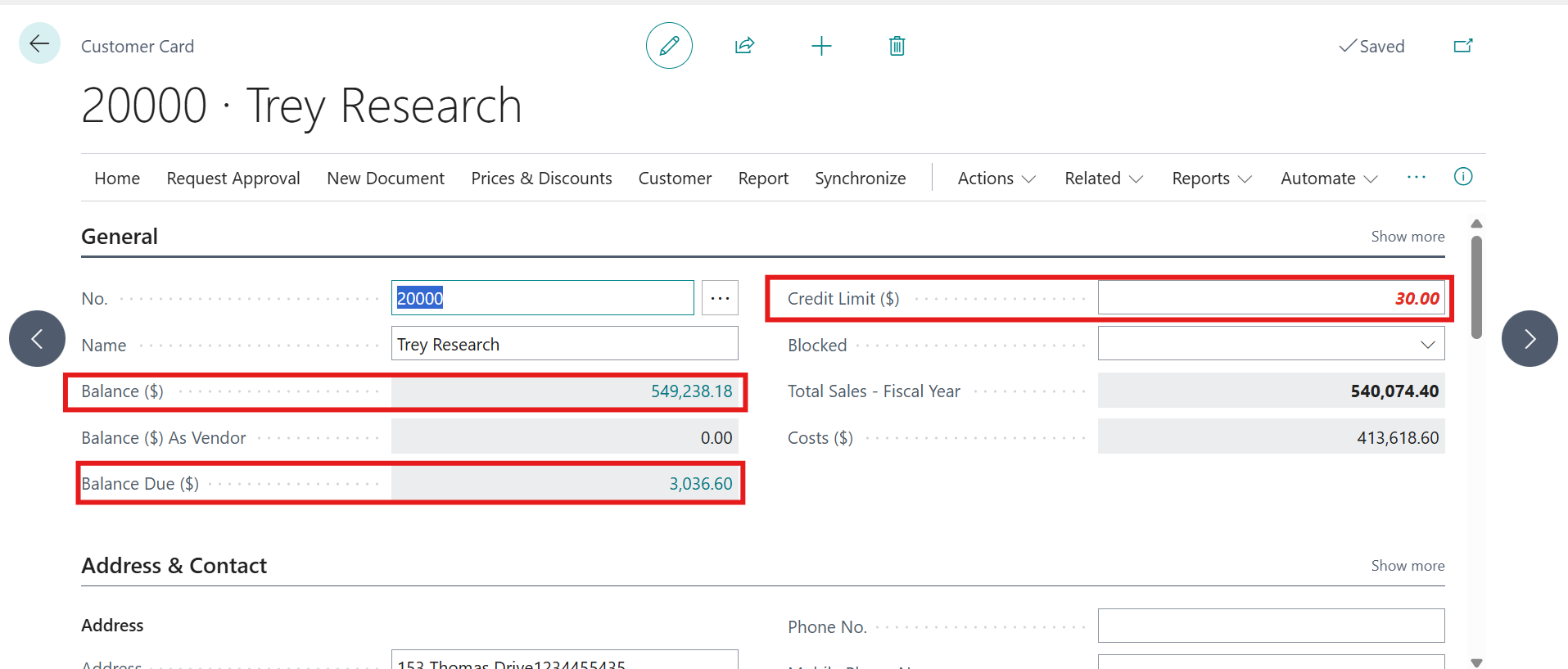
Wouldn’t it be great if your team got an automatic email alert the moment a customer’s sales order exceeds their credit limit?
That’s exactly what we’ll build today — using Power Automate, Business Central, and Outlook.
What We’re Building
We’ll create a flow that:
- Watches for new or updated sales orders in Business Central.
- Checks if the customer’s credit limit is breached.
- Sends a smart email to your team with actionable options.
No manual checks. No delays. Just instant alerts.
What You’ll Need
- Access to Dynamics 365 Business Central (with API enabled).
- A Power Automate
- Microsoft 365 email (Outlook).
- Basic understanding of Business Central tables like Customer, Sales Header, and Sales Line.
The Flow at a Glance
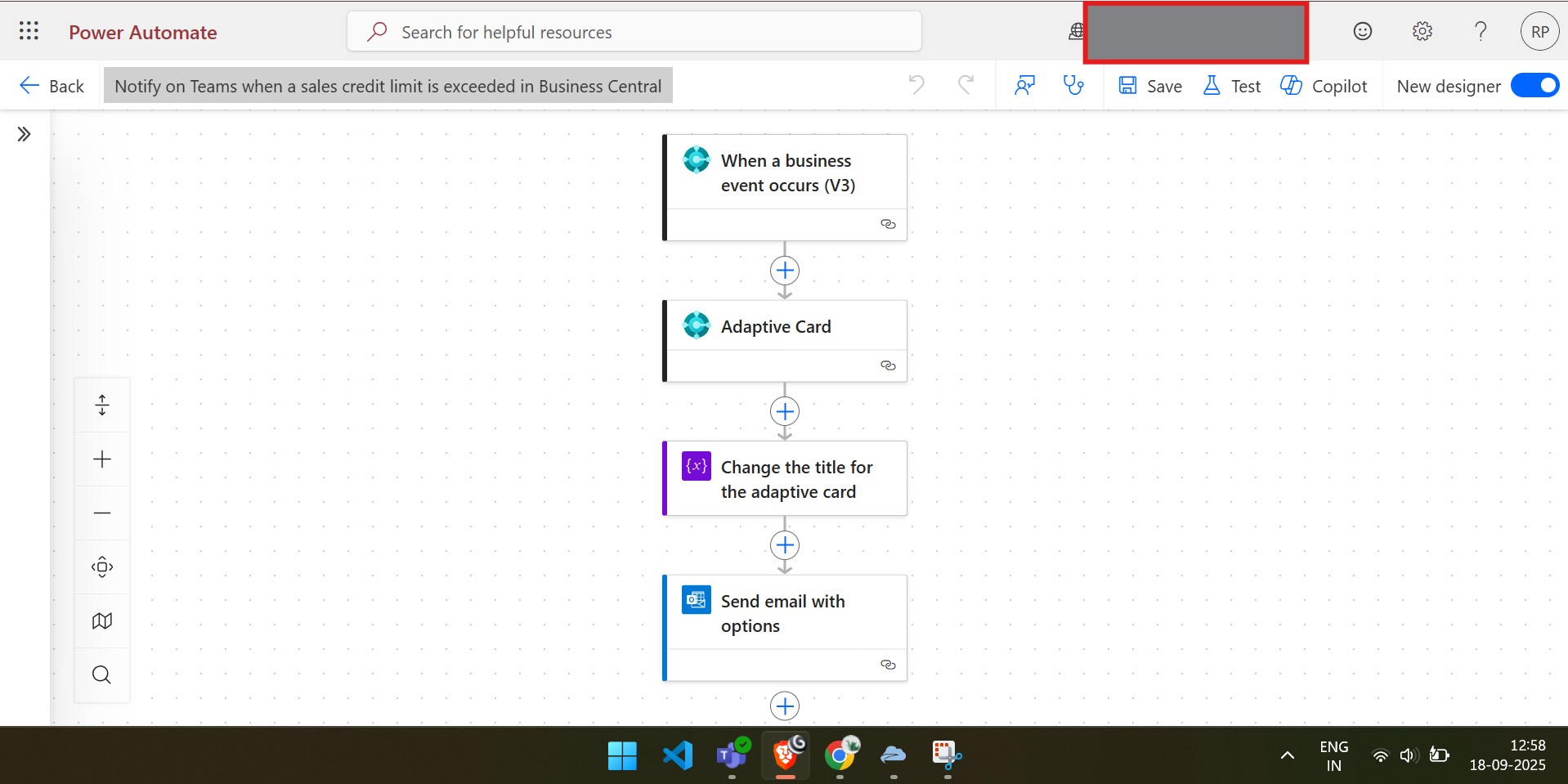
Here’s the flow we’ll build, step by step:
- Trigger: When a business event occurs (Sales Order created/updated).
- Adaptive Card: Create a dynamic card with credit limit details.
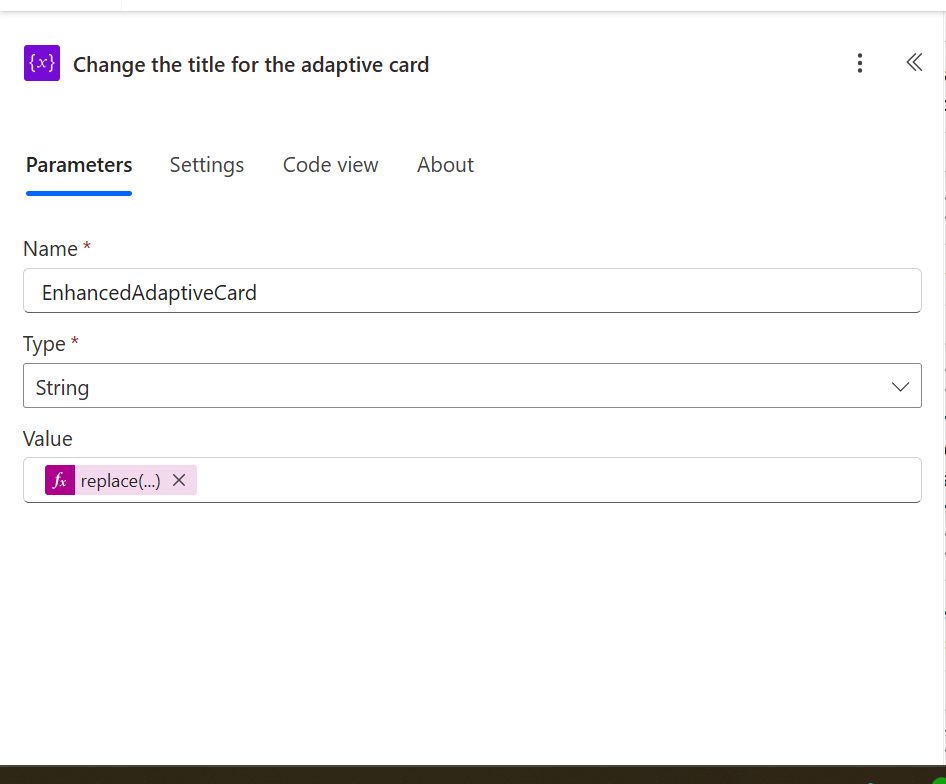
- Change Title: Customize the card title based on customer info.
- Send Email with Options: Notify the team with actionable choices.
Let’s break it down.
Step-by-Step Guide
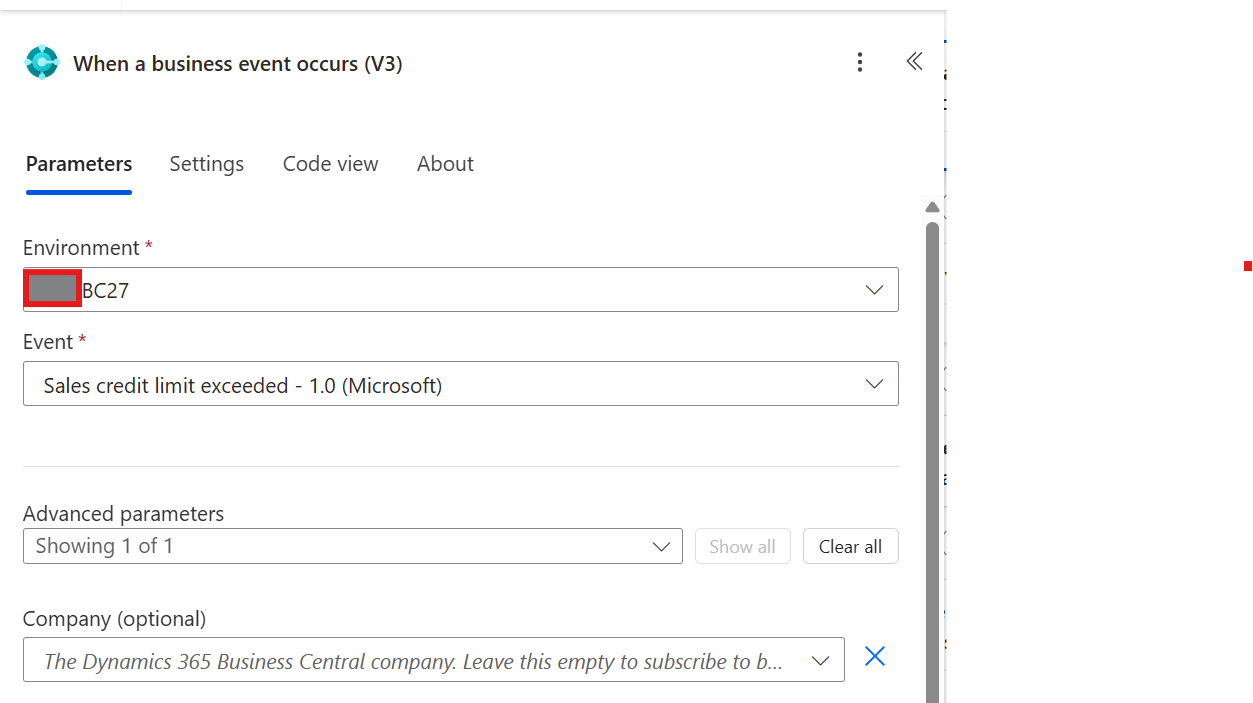
🔹 Step 1: Trigger – “When a Business Event Occurs (V3)”
This is where the magic starts.
- Use the Business Central connector.
- Choose the Event sales credit limit.
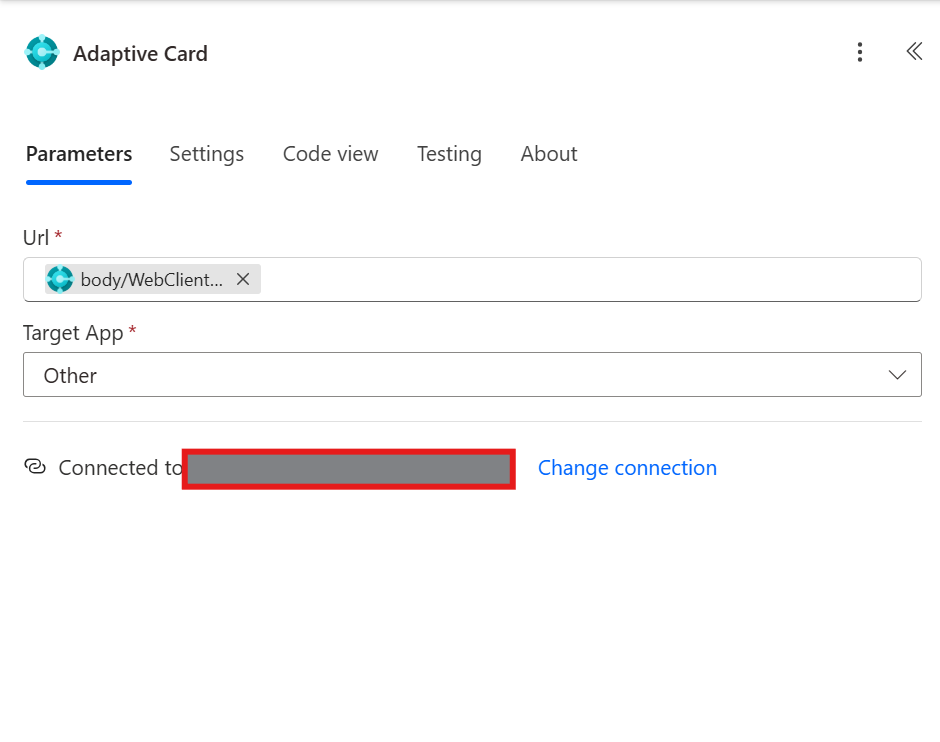
🔹 Step 2: Create an Adaptive Card
Adaptive Cards are like mini dashboards inside your email.
Use the Adaptive Card Designer to build a card that shows:
- Customer Name
- Credit Limit
- Sales Order Total
- Sales Order No.
- Action buttons like “Review Order”, “Hold Order”, or “Ignore”
🔹 Step 3: Change the Card Title Dynamically
Make the alert personal.
Use a Set Variable or Update Property action to change the card title based on the customer.
Example:
Credit Limit Exceeded for Trey Research.
This grabs attention and makes it clear who the alert is about.
Step: 3 Next, create the Order Picture action in the Sales Order page.

🔹 Step 4: Send Email with Options
Now, let’s notify the team.
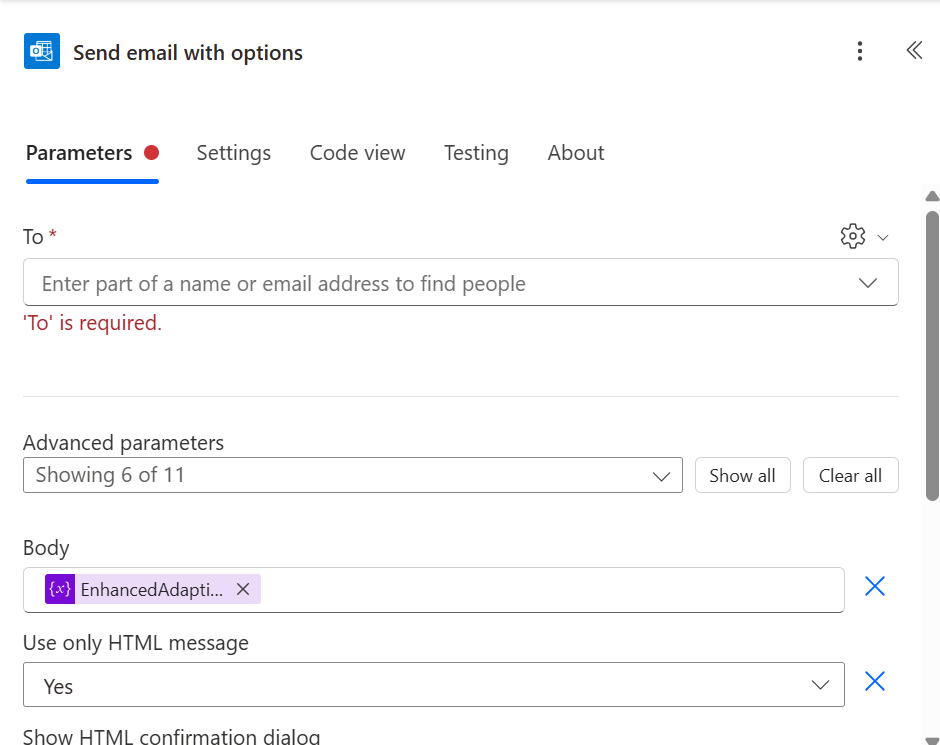
- Use the Outlook connector → “Send Email with Options”
- Set the recipient (Sales Manager, Finance Team, etc.)
- Subject: Credit Limit Breach Alert – [Customer Name]
- Body: Embed the Adaptive Card
- Options: “Review Order”, “Hold Order”, “Ignore”
This gives your team the power to act — right from their inbox.
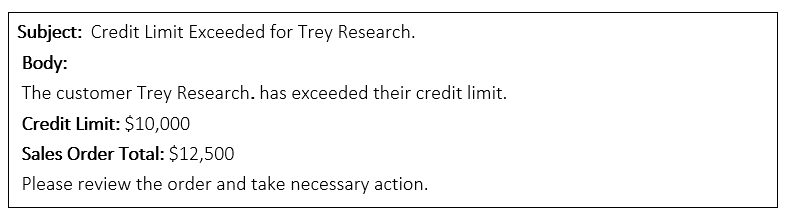
What the Email Looks Like
Here’s a sample:
For more details like this please follow our company LinkedIn page where you will get all the new updates every week.
Modernizing Dynamics GP, NAV & AX Credit Limit Alerts to Business Central
Organizations migrating from on-premises ERP systems (such as Dynamics GP, Dynamics NAV, or Dynamics AX) frequently struggle with legacy credit limit workflows. In GP and NAV, credit limit notifications relied on hardcoded modal dialogs or custom SQL stored procedures that do not alert mobile sales representatives or remote credit managers.
Why Power Automate Cloud Flows Outperform Legacy GP & NAV Credit Warnings
- Cross-Platform Notifications: Trigger instant Microsoft Teams approval cards and mobile push alerts the second a sales order exceeds the customer's allocated credit ceiling.
- Multi-Tier Approval Routing: Route credit limit override approvals dynamically to regional finance directors based on total credit exposure and customer tier.
- Automatic Order Hold & Release: Automatically place the sales order on credit hold status in Business Central, preventing warehouse picking until digital approval is registered.
- Audit Trail Governance: Log every credit override decision, approver timestamp, and comment directly into Dataverse for compliance and audit reporting.
Planning a Migration from Dynamics GP or NAV to Business Central?
Allgrow Technologies specializes in clean, risk-free migrations from legacy Dynamics GP and NAV to cloud Dynamics 365 Business Central. Learn about our ERP Modernization & Migration Services or get a free 30-minute migration assessment with our Florida practice leads.