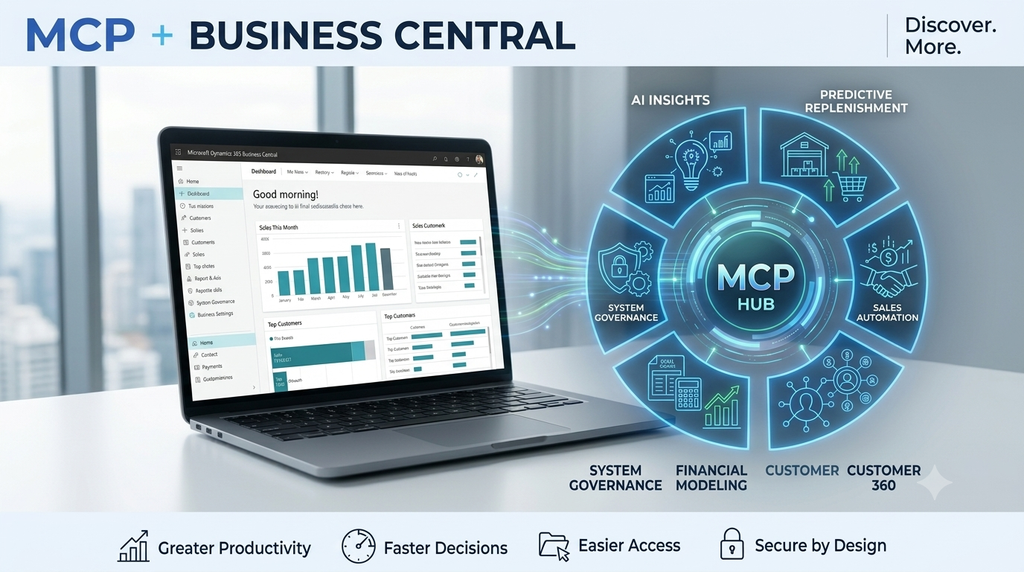
Imagine asking, “Which orders are still pending?” or “Which products need replenishment?” and getting answers from your Business Central data without manually searching through records. What would that change about your team’s daily work?
Right now, even a simple question like that means clicking through pages, setting filters, and running a report. Half the time you end up pinging a colleague anyway. Now picture just typing the question the way you’d say it out loud, and getting the answer back in seconds from your live data. Less hunting, quicker replies to customers, and more time for the work that actually needs your brain.
AI Can Answer Questions. But Can It Reach Your ERP?
AI tools are becoming better at understanding everyday questions, summarizing information, and helping people work through tasks. Ask a general AI assistant to explain what an overdue sales order means, and it can give you a useful explanation. But ask it which orders are overdue in your Business Central environment, and it needs access to your actual business data.
Without that connection, the assistant cannot reliably tell you which customer orders are still open, what quantities are outstanding, or which deliveries are late. You would still need to open Business Central, find the right records, and provide the information yourself.
This is the gap between an AI assistant that can talk about business operations and one that can work with information from your business applications. The assistant needs a controlled way to discover available data and tools, request information, and receive results.
MCP helps provide that connection. It is an open standard that defines how AI applications communicate with external systems and tools. In simple terms, it gives an AI client a common way to connect to an application such as Business Central, discover what it is allowed to access, and use those capabilities.
AI brings the ability to understand a request. MCP provides a standard way for that AI application to reach the business data and tools needed to respond.
How MCP Connects AI with Business Central: What Happens Behind the Scenes?
Imagine a purchasing manager asking an AI assistant, “Which products should we reorder this week?” The answer depends on information already available in Business Central, such as current stock levels, incoming purchase orders, and outstanding demand.
But how does the AI assistant reach that information?
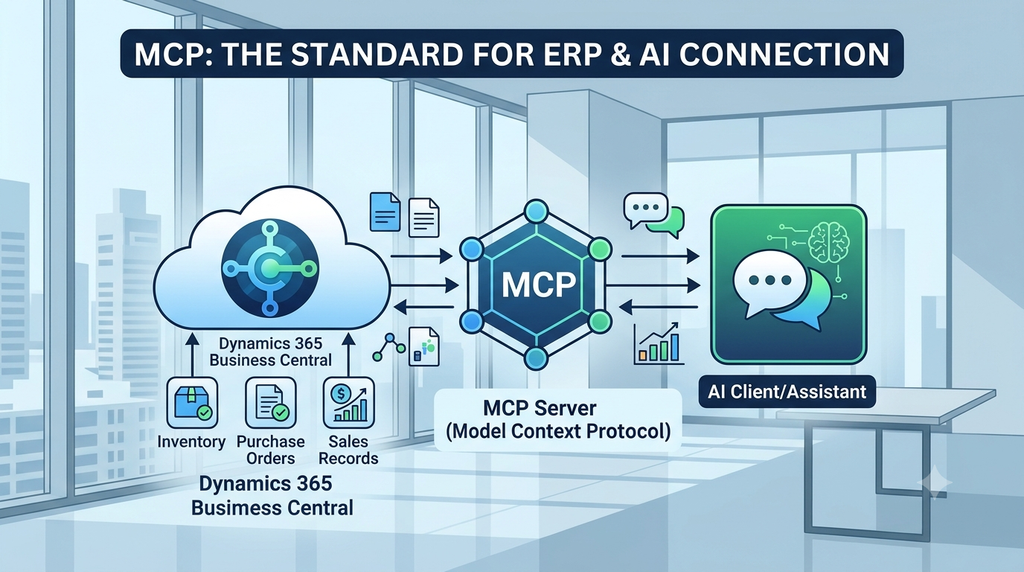
This is where Model Context Protocol (MCP) comes in. It provides a standard way for AI applications to connect with external systems, including Business Central, and use the data and tools those systems make available.
In this setup, three components work together:
- AI client: The assistant that understands the user’s question and works out what information or action is needed.
- MCP server: Provides the connection between the AI client and Business Central, exposing the approved data and actions.
- Business Central: Remains the source of the company’s business information, including inventory, purchase orders, sales records, and financial data.
When the purchasing manager asks about products that need reordering, the AI client can use the available tools through the MCP server to retrieve relevant information from Business Central. The assistant can then present the findings in a simpler, more accessible format.
The real value is not simply connecting an AI assistant to an ERP. It is making existing business information easier to access and use. Employees can spend less time navigating records and searching through reports, while still relying on Business Central as the system that manages their business data and processes.
MCP does not replace Business Central or make every operation automatically available to AI. What the assistant can access or do depends on the tools configured, user permissions, and the controls established by the business.
What Changes for a Business Central User?
The biggest difference is how users access information and begin their daily tasks. Instead of navigating through several pages for every query, employees may be able to ask questions in plain language and retrieve the required information through the tools made available by the Business Central MCP server.
For example, a sales manager could ask, “Show me the sales orders that are still open and due this week.” A purchasing employee could check which items are below their reorder point, while a finance team member could retrieve overdue customer entries, provided the required data and query capabilities are available.
The information can be presented in a concise summary, making it easier to review records and identify what needs attention. Users can also ask follow-up questions, such as which customer has the oldest outstanding order or which items have the largest stock shortage. This can reduce the time spent searching through individual records and help teams focus on the next step..
Where This Could Help During the Working Day
Sales teams: Sales employees can use MCP to quickly retrieve details of open sales orders, check which orders are due for delivery, and identify shipments that have been delayed. They can also look up customer order information and review pending orders without repeatedly navigating through different pages or applying filters. This can help sales teams respond to customer queries faster and identify orders that may require follow-up.
Purchasing teams: Purchasing employees can check which items are running low on stock and may need replenishment. They can also review open purchase orders, check expected delivery details, and access information related to supplier delays. Having these details readily available can help purchasing teams identify supply gaps earlier and make more informed decisions about upcoming orders.
Warehouse teams: Warehouse employees can use the available tools to check item availability, review outstanding goods receipts, and find records related to pending deliveries. For example, when a delivery is delayed or an item is unavailable, they can retrieve the relevant information without manually checking multiple records. This can make it easier to identify where an issue needs attention and coordinate the next steps.
Finance teams: Finance employees can retrieve customer and vendor entries, review overdue balances, and identify transactions that may require further investigation. They can also access relevant information about outstanding payments and pending entries, making it easier to prepare for routine financial reviews and follow up on items that need attention.
These are examples of possible workflows, not automatic results available in every Business Central setup. The relevant APIs, queries, permissions, and AI client must be configured to support each task.
From Asking a Question to Getting an Answer: A Simple Example
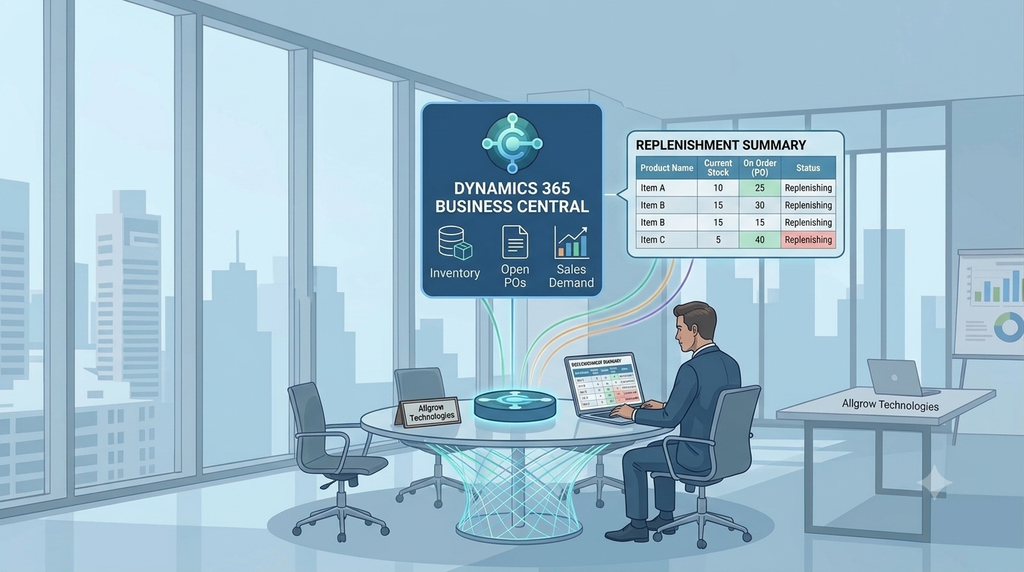
Consider Daniel, who manages purchasing for a distributor using Dynamics 365 Business Central. Every morning, he needs to identify which products may require replenishment. To do this, he normally checks inventory levels, reviews current demand, looks through open purchase orders, and compares the information before deciding which items need attention.
With an AI client connected to Business Central through a properly configured MCP server, Daniel can ask a direct question: “Which products need replenishment, and are there any open purchase orders already on the way?”
Here is how this process could work:
Understanding the requirement: The assistant interprets Daniel’s request and identifies that he needs to review current stock levels alongside incoming supply.
Retrieving Business Central information: It uses the available tools to access the item and inventory information that has been permitted through the MCP connection.
Comparing stock and incoming orders: Using the records made available through the configured tools, it can bring together current inventory details and open purchase orders to show which products may need attention and whether additional stock is already expected.
Presenting the findings: Instead of making Daniel review each record individually, the assistant can provide an organized summary of the products that may require replenishment, along with details of any open purchase orders.
Reviewing and deciding the next step: Daniel can examine the results, investigate the items that need attention, and decide whether a new purchase order is required according to the company’s purchasing process.
The real benefit is the time saved in collecting and comparing information from different Business Central records. Daniel still makes the purchasing decision, but he has a clearer picture of stock availability and incoming supply before taking action.
Instead of spending the first part of the morning finding the information, the purchasing manager can spend more time deciding what the information means.
MCP Is More Than Reading Data
It is easy to think of this connection as a way to ask questions and retrieve ERP information. But the Business Central MCP server can expose more than read-only access when an administrator deliberately configures it to do so.
Microsoft’s default Business Central MCP configuration provides read-only discovery of eligible API pages and API queries that the signed-in user is allowed to access. Administrators can create or select configurations that expose additional API tools and define which operations are allowed. Depending on that configuration, an AI client may be able to create or update records, delete records, or invoke selected business actions.
For example, an agent might be configured to prepare a record or carry out a permitted action after a user request. However, this does not mean every AI assistant can freely change Business Central data. The available operations depend on the configured APIs, permissions, and controls.
Reading an order is not the same as changing its status. Preparing a purchase order is not the same as approving or sending it to a supplier. Businesses should decide carefully which actions an AI assistant may perform and which must remain subject to employee approval.
Connecting AI to an ERP should not mean giving it unrestricted access. It means making selected information and actions available under clear business permissions.
What About Security and Control?
Business Central stores critical business information, from customer and supplier details to pricing, financial entries, and operational records. When connecting an AI assistant to this information, businesses need to make sure that existing security requirements remain in place.
The Business Central MCP server uses Microsoft Entra ID for authentication. This means operations are carried out using the signed-in user’s identity and permissions, rather than giving the assistant unrestricted access to the ERP. Administrators also decide which API objects and operations are made available through the MCP configuration.
Before introducing this connection into daily operations, businesses should consider a few important areas:
Define access based on business requirements.Start by identifying what employees need to access and which tasks the connected assistant is expected to support. Only expose the Business Central data and tools required for those tasks. For example, an employee reviewing inventory may not need access to financial records or sensitive customer information.
Keep sensitive operations restricted: Reading information and changing business records are two different levels of access. Operations such as creating, modifying, deleting, or posting records should be enabled only when there is a clear business requirement. Businesses should also establish suitable approval procedures before allowing these actions through the connection.
Test the results before wider use: Before making the connection available to employees, check whether it retrieves the correct Business Central records and presents information accurately. Test situations involving incomplete data, missing records, or conflicting information to understand how the assistant handles them and whether employees can identify when further investigation is needed.
Keep employees involved in important decisions: A connected assistant can help retrieve information and support routine tasks, but it should not remove necessary business reviews. Activities involving payments, financial approvals, customer commitments, and other high-impact decisions should continue to follow the organization’s existing approval procedures.
Monitor access and activity regularly: Administrators should review which users can access the connection, which operations are available, and how the connected tools are being used. Monitoring errors, unusual activity, and the results produced can help identify configuration issues and determine whether access controls need to be adjusted.
Connecting an AI assistant to Business Central can make business information easier to access, but the quality and security of that connection depend on proper configuration. Accurate ERP data, controlled permissions, regular testing, and effective administration remain essential.

What Businesses Need Before Getting Started
Connecting MCP with Business Central should begin with a clear understanding of what the business wants to improve. Simply making ERP data available to an AI application does not guarantee better results. Businesses first need to identify where employees spend time searching for information, which tasks could be made easier, and what level of access is appropriate.
Before moving ahead, there are a few areas worth reviewing:
1. Start with the everyday business challenges
Look at the questions employees repeatedly ask and the information they regularly search for in Business Central. This could include checking pending sales orders, reviewing stock availability, finding overdue customer entries, or tracking open purchase orders. These everyday activities can help identify where an MCP connection could make a practical difference.
2. Review the available Business Central data
Once the requirements are clear, check whether the necessary information is available through suitable Business Central APIs or queries. For example, if the objective is to help purchasing teams review stock and incoming orders, the relevant inventory and purchase order information must be accessible through the connection.
3. Select an AI client that fits the working environment
Consider which MCP-compatible application best suits the company’s existing Microsoft environment and the way employees work. The choice should support the intended Business Central tasks and fit the organization’s security and operational requirements.
4. Configure access and permissions carefully
Decide which Business Central data and operations should be available through the MCP server. Access should be based on actual job requirements, with suitable restrictions on sensitive information and actions such as creating, modifying, or posting records.
5. Test the setup using actual business scenarios
Before making the connection part of everyday work, test it with questions employees are likely to ask. Check whether it retrieves the correct records, handles missing information, and provides useful results. This also helps identify gaps in the configuration before employees begin relying on it.
The focus should be on solving a specific business problem, not introducing another technology simply because it is available. A well-planned MCP connection should fit into existing Business Central processes, make relevant information easier to access, and give employees a more convenient way to handle routine tasks.
So, Is MCP the Missing Link Between AI and ERP?
AI has made it easier to ask questions, understand information, and work through tasks using everyday language. ERP systems such as Dynamics 365 Business Central already hold the records and business logic that employees rely on every day. MCP helps connect these two worlds through a standard way for AI applications to discover and use approved data and tools.
For a Business Central user, that could mean spending less time navigating pages and gathering information, and more time understanding what is happening across sales, purchasing, inventory, and finance. For a business, it creates new ways to make ERP information accessible through conversational workflows while keeping access and actions under control.
The opportunity is not to replace Business Central or remove employees from the process. It is to make the information and capabilities already inside the ERP easier to use, so people can get to the next useful step faster.
At Allgrow Technologies, we help businesses implement, integrate, customize, and support Microsoft Dynamics 365 solutions around their operational needs. For organizations using Business Central, we can help assess where conversational access, system integrations, and AI-assisted workflows may add value, and what configuration and controls are needed to make them practical.