How to Send Email Notifications When Releasing a Sales Order in Business Central
In Microsoft Dynamics 365 Business Central, the release of the Sales Order is a key control step — it indicates that an order is ready for subsequent processing, like picking, shipping, or invoicing.
But in most organizations, it’s beneficial to automatically notify certain users or departments when a Sales Order is released.
For instance:
- The warehouse staff might need to begin preparing the shipment.
- The finance team might prefer to watch for released orders for credit limits.
- Or a sales manager might prefer to see approvals and order flow in real time.
Luckily, with some minimal AL customization, we can send an automatic email notification whenever a Sales Order is released.
Processing model.
This integration ensures accurate data capture, faster processing, and centralized storage for reporting and downstream Cloudflows.
In this blog, we will take you through:
- How to configure email accounts in Business Central.
- How to develop a basic AL codeunit that triggers and sends the email notification.
- Screenshot step-by-step examples.
This tutorial has been written according to Business Central 27 (2025 release wave 2), but the same applies to previous versions as well. 
Step by Step Explaination
Step 1: Set Up Email in Business Central
You need to set up your email account before Business Central is able to send any email.
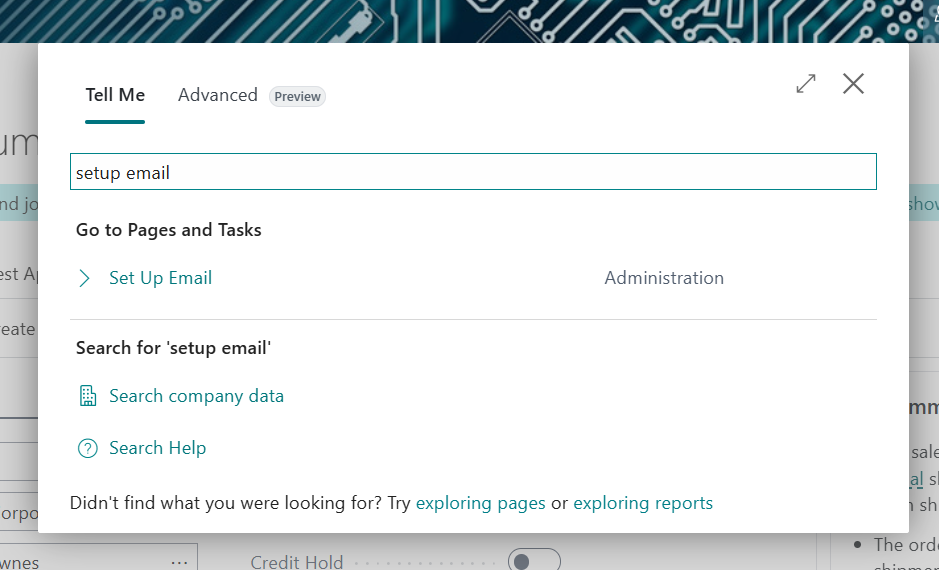
- In the Tell Me search field, enter “setup email” and click Set Up Email.
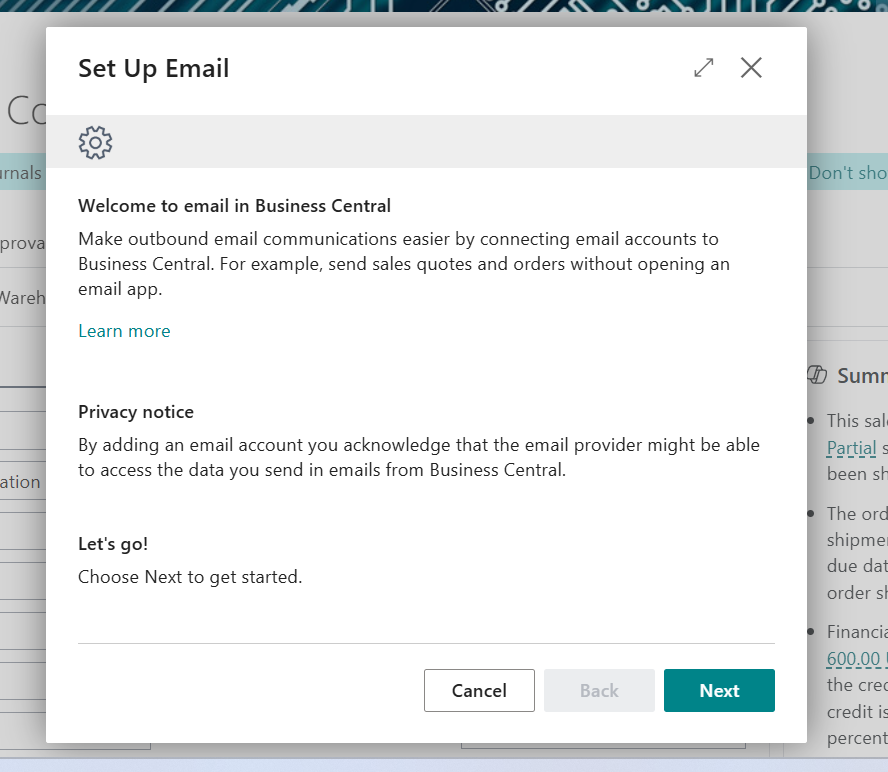
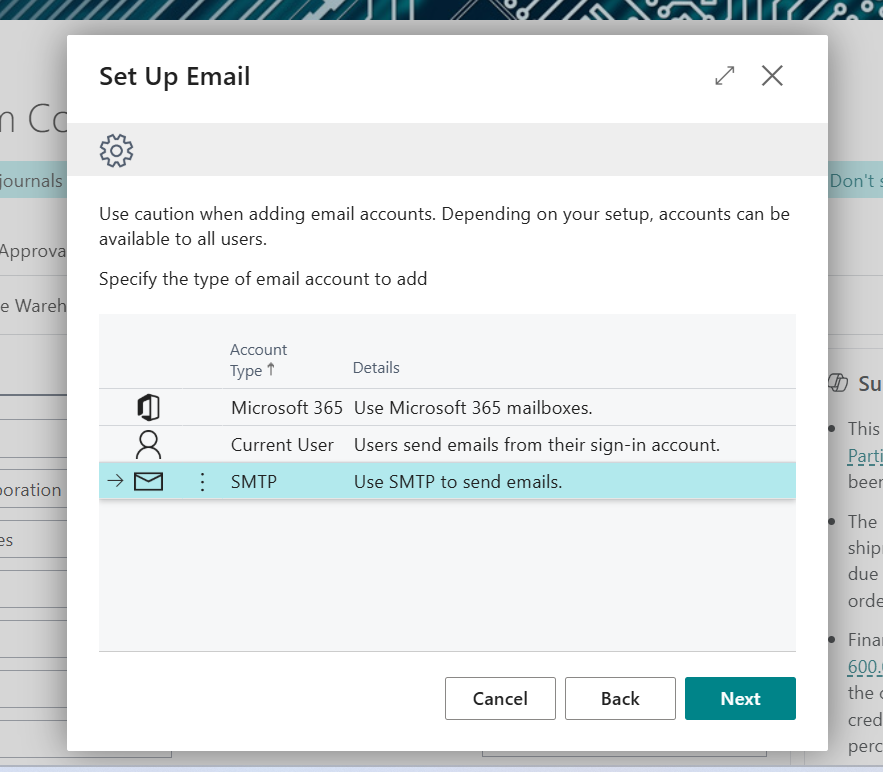
- In the Set Up Email wizard, you will be prompted to select the account type. You can utilize one of the following:
- Microsoft 365 – Suggested if you utilize Exchange Online or Outlook 365.
- Current User – Utilizes the signed-in user’s Microsoft 365 account.
- SMTP – For typical SMTP mail servers (e.g., Gmail, corporate mail relay).
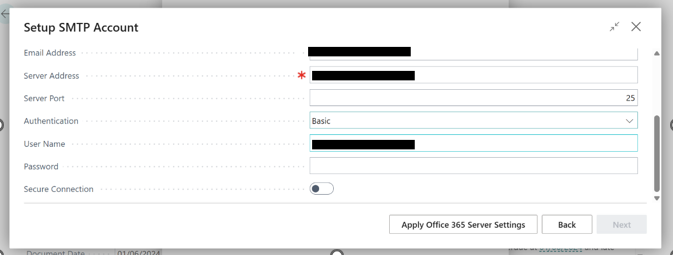
- Next, fill in the required information (such as SMTP server, port, sender address, and authentication), and finish the setup.
Step 2: Create a Codeunit to Send Email on Sales Order Release
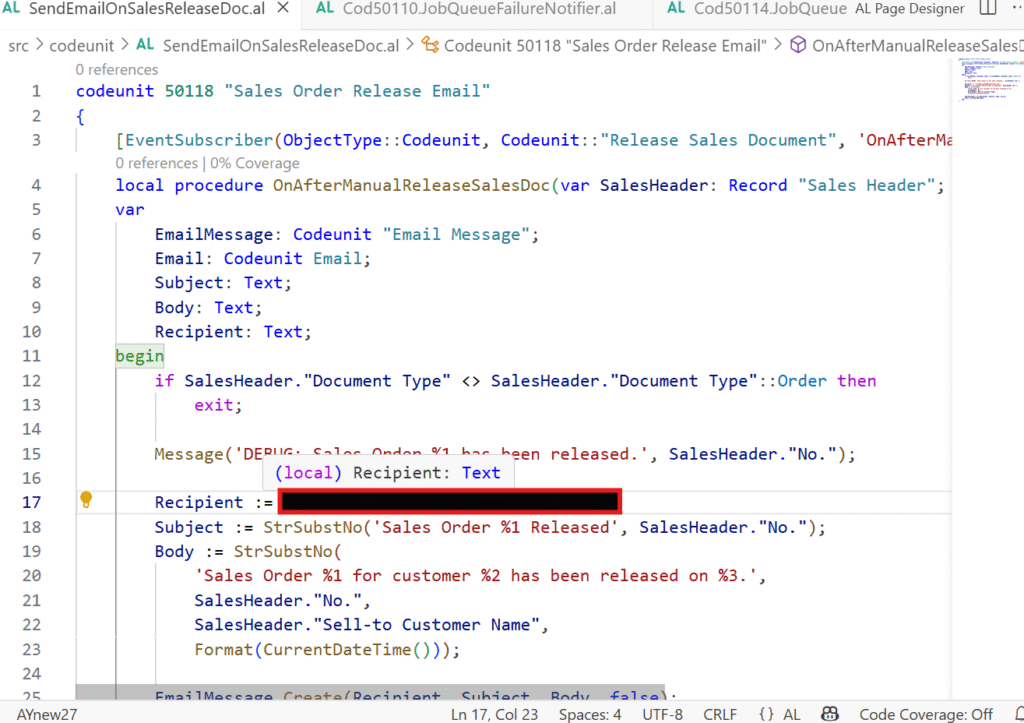
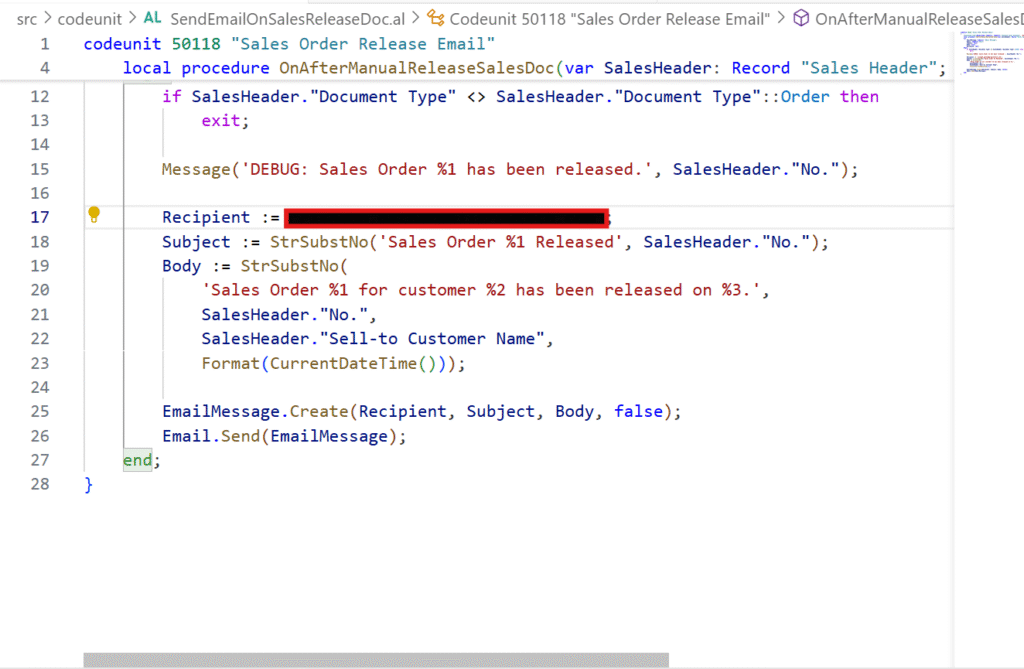
Now that the email setup is ready, we’ll create a new AL code unit that listens for the Sales Order release event and sends an email.
- Open Visual Studio Code connected to your Business Central environment.
- Create a new file, for example:
SendEmailOnSalesReleaseDoc.al
- Add the following code:
Step 3: Deploy and Test
- Publish your extension to your sandbox using Visual Studio Code (Ctrl + F5).
- In Business Central, go to any Sales Order and click Release.
- Look into the mailbox of the recipient you set up — you should get an email like this:
Subject: Sales Order 102001 Released
Body: Sales Order 102001 for customer Alpine Ski House was released on 06/10/2025 11:25 AM.
More Enhancements
You can extend this logic further based on your business requirements:
- Send to various recipients depending on Salesperson, Location, or Customer Group.
- Save recipients in a custom setup table rather than hardcoding.
- Add additional order information like amount, shipping date, or payment terms.
- Send HTML email templates for improved formatting.
Outcome
For more details like this please follow our company LinkedIn page where you will get all the new updates
every week:
https://www.linkedin.com/company/allgrow-technologies-pvt-ltd/mycompany/
or you can write us at contact@allgrowtech.com
-By Abhishek Yadav
Author
Leave a comment
Your email address will not be published