
When an enterprise scales on Microsoft Dynamics 365 Business Central SaaS, performance degradation rarely announces itself politely. It arrives during peak morning order fulfillment: warehouse scanners freezing during pick confirmations, finance teams staring at spinning dials while posting sales invoices, and automated e-commerce sync jobs crashing with SQL table lock timeout errors.

In on-premises Dynamics NAV or SQL Server environments, administrators could mask architectural inefficiencies by adding RAM, upgrading NVMe drives, or spinning up extra virtual cores. In Business Central Cloud (SaaS), however, that luxury does not exist. Tenants share pooled Microsoft Azure SQL infrastructure with elastic resource governors. When an unoptimized AL customization holds a transaction open or queries unindexed SIFT buckets, Microsoft's compute governor throttles execution, triggers deadlock rollbacks, and deprioritizes background tasks.
Through dozens of enterprise ERP remediation engagements at Allgrow Technologies, our architects have documented that over 90% of cloud performance issues stem from four specific culprits: misunderstood SQL locking semantics in AL, monolithic Job Queue configurations, heavy uncached REST/OData API integration loops, and lack of Application Insights telemetry governance.
This engineering guide outlines the exact tactical methodology our architects use to diagnose, trace, and eliminate these bottlenecks for good.
1. The Anatomy of SQL Table Locks in Business Central Cloud
In Microsoft Dynamics 365 Business Central, every business transaction maps down to Azure SQL Server database engines. When a user or automated process writes or modifies a record, the Business Central Server Service Tier (NST) places locks on rows, pages, or entire tables to guarantee ACID (Atomicity, Consistency, Isolation, Durability) compliance.
The most common locking modes encountered in Business Central include:
- Shared Locks (S): Acquired when reading data. Multiple readers can read simultaneously without interference.
- Exclusive Locks (X): Acquired when inserting, modifying, or deleting records (e.g.,
Rec.Modify(),Rec.Insert(), orRec.LockTable()). No other transaction can read or write to this locked resource until the transaction commits or aborts. - Update Locks (U): Acquired when reading data with intent to update, preventing deadlocks between concurrent readers intending to write.
- Intent Locks (IS, IX): Establish locking hierarchy to prevent parent tables from being locked concurrently.
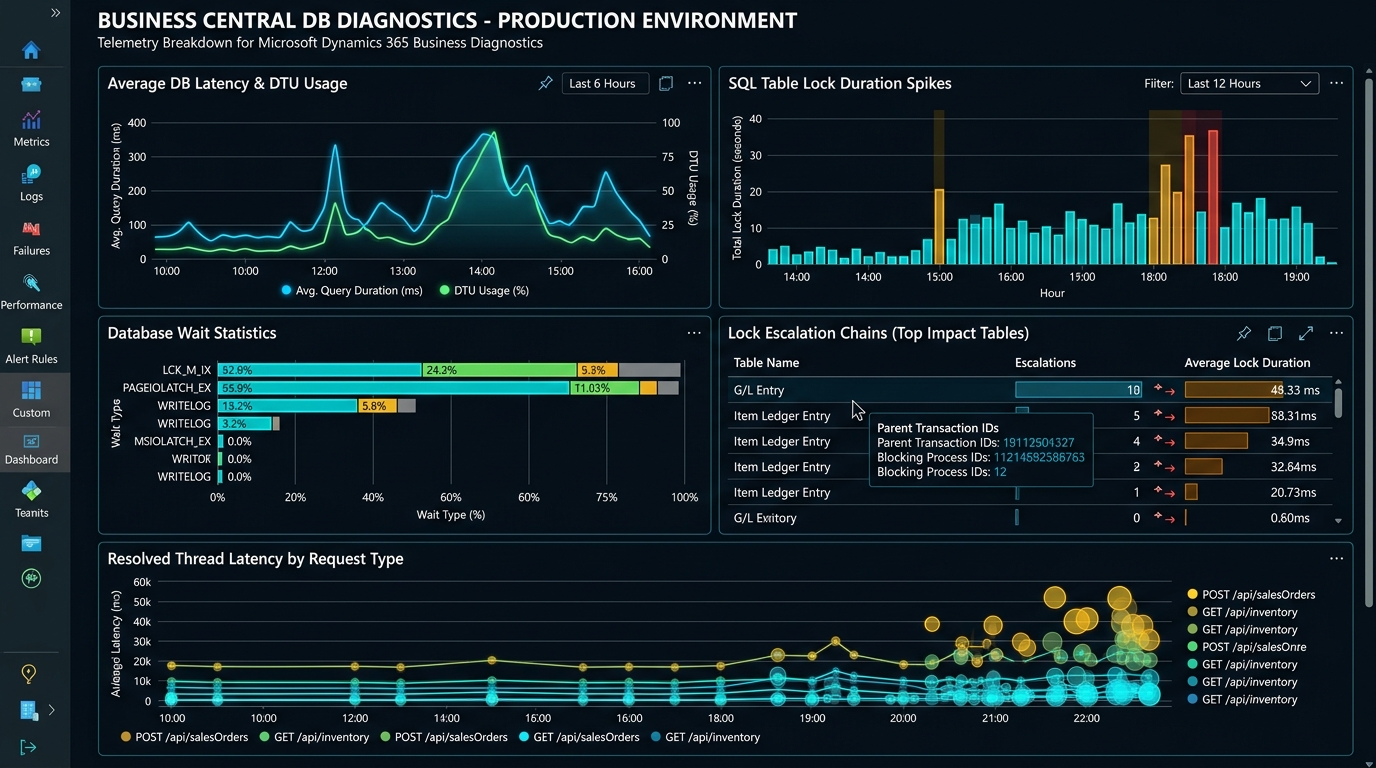
In AL programming, an exclusive transaction lock persists until the very end of the codeunit execution or until an explicit Commit(). If custom AL code modifies an Item Ledger Entry or Sales Line, and then initiates an external HTTP web service request (via HttpClient) or presents a modal confirm dialog to the user, the database lock remains held. Every other user attempting to post a shipment or reserve inventory is blocked in a lock wait queue until Microsoft's SQL engine throws error RT0012: The database was unable to lock table....
SumIndexField Technology (SIFT) Lock Escalation
SIFT tables (such as Item Ledger Entry$0 or G/L Entry$0) maintain pre-calculated sums of quantities and amounts across inventory, customer ledgers, and general ledger accounts. While SIFT enables lightning-fast retrieval of calculated flowfields (like Item."Inventory" or Customer."Balance (LCY)"), it introduces heavy transactional concurrency overhead.
When multiple warehouse operators post item adjustments simultaneously, Business Central updates the underlying SIFT aggregation buckets. If multiple transactions target the same SIFT hash bucket, SQL Server escalates row-level locks to page-level or partition locks, stalling parallel posting threads.
AL Optimization: Implementing ReadIsolation and Deferral Patterns
Modern Business Central releases (BC 20 and later) introduced explicit transactional read isolation settings. Instead of defaulting to pessimistic locking during reporting or non-critical evaluations, engineers can isolate reads without blocking active postings:
// Modern High-Concurrency AL Read Isolation Pattern
procedure GetLiveStockSnapshot(ItemNo: Code[20]; LocationCode: Code[10]): Decimal
var
    ItemLedgerEntry: Record "Item Ledger Entry";
begin
    // Use ReadUncommitted for non-financial analytical lookups
    ItemLedgerEntry.ReadIsolation := IsolationLevel::ReadUncommitted;
    ItemLedgerEntry.SetCurrentKey("Item No.", "Location Code", "Posting Date");
    ItemLedgerEntry.SetRange("Item No.", ItemNo);
    ItemLedgerEntry.SetRange("Location Code", LocationCode);

    // SetLoadFields guarantees only the needed field is transferred from Azure SQL
    ItemLedgerEntry.SetLoadFields(Quantity);
    ItemLedgerEntry.CalcSums(Quantity);

    exit(ItemLedgerEntry.Quantity);
end;
By combining ReadIsolation::ReadUncommitted with dedicated SIFT key indexes, read operations avoid requesting shared locks on active posting ranges, completely eliminating lock contention between warehouse pick verifications and background EDI order creation.
2. Mastering Azure Application Insights & KQL for BC Telemetry
Chasing ERP performance issues based on user hearsay (“the system felt sluggish around 10:30 AM”) is an exercise in futility. Professional Dynamics 365 Business Central Support relies on objective instrumentation using Azure Application Insights connected directly to the Business Central Environment Admin Center.
Business Central emits rich telemetry events that pinpoint the exact extension ID, table, codeunit, and SQL statement causing latency. Key Event IDs include:
| Event ID | Telemetry Event Name | Operational Meaning & Threshold |
|---|---|---|
RT0005 |
Long Running SQL Query | Queries exceeding 1,000ms. Identifies missing database indexes or inefficient table joins. |
RT0012 |
Database Lock Timeout | A transaction waited for a locked table or row until timeout (default ~10-15s), resulting in process termination. |
RT0018 |
Incoming Web Service Request | Captures external REST, OData, and SOAP API calls, status codes, execution duration, and throttling (HTTP 429). |
RT0006 |
Long Running AL Method | AL code executions exceeding the 2,000ms threshold, pinpointing slow event subscribers and loops. |
RT0008 |
Report Execution | Identifies resource-heavy RDLC, Word, or Excel reports running during operational hours. |
Production KQL Queries: Unmasking Table Lock Bottlenecks
Deploy the following Kusto Query Language (KQL) script in Azure Log Analytics to extract the top tables suffering from lock contention, the extensions responsible, and the average duration of wait states:
// KQL Query: Top SQL Lock Timeouts by Table and Extension
traces
| where timestamp >= ago(7d)
| where customDimensions.eventId == "RT0012"
| extend
    companyName = tostring(customDimensions.companyName),
    tableName = tostring(customDimensions.tableName),
    extensionName = tostring(customDimensions.extensionName),
    extensionVersion = tostring(customDimensions.extensionVersion),
    alObjectId = tostring(customDimensions.alObjectId),
    alObjectName = tostring(customDimensions.alObjectName),
    executionTimeMs = toreal(customDimensions.executionTimeInMs)
| summarize
    LockCount = count(),
    AvgWaitMs = round(avg(executionTimeMs), 2),
    MaxWaitMs = round(max(executionTimeMs), 2)
    by tableName, alObjectName, extensionName
| sort by LockCount desc
| take 15
This query immediately surfaces whether locks are originating from standard Microsoft posting routines or an ISV extension inserting audit logs inside a global posting subscriber.
Production KQL Queries: Detecting Throttled External APIs (Event RT0018)
When e-commerce marketplaces (Amazon, Shopify, Mirakl) push batch orders simultaneously, poorly architected integrations can trigger HTTP 429 (“Too Many Requests”) throttling:
// KQL Query: API Throughput & 429 Throttle Rate Analysis
traces
| where timestamp >= ago(24h)
| where customDimensions.eventId == "RT0018"
| extend
    httpStatusCode = toint(customDimensions.httpStatusCode),
    category = tostring(customDimensions.category),
    endpoint = tostring(customDimensions.endpoint),
    executionDuration = toreal(customDimensions.serverExecutionTimeInMs)
| summarize
    TotalCalls = count(),
    ThrottledCalls = countif(httpStatusCode == 429),
    FailedCalls = countif(httpStatusCode >= 500),
    AvgLatencyMs = round(avg(executionDuration), 2),
    P95LatencyMs = round(percentile(executionDuration, 95), 2)
    by endpoint
| extend ThrottlePercentage = round((ThrottledCalls * 100.0) / TotalCalls, 2)
| sort by TotalCalls desc
3. Job Queue Optimization & Preventing Category Starvation
The Business Central Job Queue is the asynchronous engine of enterprise automation—powering automated document posting, banking feeds, inventory replenishment calculations, and EDI syncs. However, default out-of-the-box setups frequently fall victim to Job Queue Starvation.

The Root Cause of Job Queue Freezes
In Business Central SaaS, Microsoft allocates background worker tasks per environment. If all scheduled jobs are configured with empty or identical Job Queue Category Codes, they execute in a single shared queue thread pool.
When an overnight EDI catalog synchronization or heavy demand-planning MRP batch encounters a third-party API timeout or slow database lock, it occupies a background thread for minutes. Behind it, hundreds of mission-critical sales order posting jobs queue up in Ready status, completely stalled.
The 4-Pillar Job Queue Engineering Architecture
-
Strict Category Code Isolation: Create discrete category codes with dedicated concurrency allowances:
CRIT-POST: Dedicated solely to background sales and purchase posting (Codeunit 80 / 90). Maximum 1-minute recurrence.EDI-SYNC: Dedicated to external e-commerce and logistics order imports. Configured with a 5-minute timeout window.MAINT-NIGHT: Scheduled heavy calculations (Adjust Cost - Item Entries, Bank Reconciliation imports) restricted to off-peak hours (10:00 PM – 4:00 AM local time).
-
Background Document Posting Setup: Enable “Post with Job Queue” and “Post & Print with Job Queue” in Sales & Receivables Setup and Purchases & Payables Setup. This decouples user interface execution from transactional database writes. When a sales order clerk clicks Post, control returns instantly in under 300ms, while the dedicated
CRIT-POSTbackground worker executes the ledger writes. -
Fail-Safe Timeout & Auto-Restart Policies: In custom AL codeunits executed by the Job Queue, never allow infinite retry loops. Implement maximum iteration counts and leverage
TaskScheduler.CreateTask()for resilient deferred processing. - Automated Telemetry Alerts for Error States: Configure Azure Monitor alert rules to ping your IT DevOps channel in Microsoft Teams or Slack the instant a Job Queue entry transitions to Error or remains in In Process longer than 600 seconds.
4. High-Performance AL Coding Patterns: Partial Records & Query Objects
Custom extensions authored by junior AL developers or legacy partners transitioning from on-premises C/SIDE are the #1 contributor to cloud latency. In cloud environments, network roundtrips between the Business Central NST and Azure SQL Server dictate execution speed.
Antipattern: The Monolithic FindSet()
Consider a scenario where custom code loops through all open sales orders to verify a status flag. The Sales Header table contains over 120 standard fields, plus custom extension fields added by third-party apps.
// ❌ BAD PRACTICE: Unbounded Data Transfer & Memory Bloat
procedure CheckUnpostedOrdersBad()
var
    SalesHeader: Record "Sales Header";
begin
    SalesHeader.SetRange("Document Type", SalesHeader."Document Type"::Order);
    SalesHeader.SetRange(Status, SalesHeader.Status::Released);

    // FindSet() without SetLoadFields pulls ALL 150+ columns across the wire for every row!
    if SalesHeader.FindSet() then
        repeat
            if SalesHeader."Shipping Advice" = SalesHeader."Shipping Advice"::Complete then
                SendWarehouseNotification(SalesHeader."No.");
        until SalesHeader.Next() = 0;
end;
Modern Solution: Partial Records (SetLoadFields)
Using Business Central’s Partial Records API, the AL runtime instructs Azure SQL to fetch only the explicit columns needed in the operation. This slashes SQL payload size by up to 92% and reduces NST memory consumption by orders of magnitude:
//  MODERN AL PRACTICE: Partial Records with SetLoadFields
procedure CheckUnpostedOrdersOptimized()
var
    SalesHeader: Record "Sales Header";
begin
    SalesHeader.SetRange("Document Type", SalesHeader."Document Type"::Order);
    SalesHeader.SetRange(Status, SalesHeader.Status::Released);

    // Load ONLY the primary key ("No.") and the evaluated field ("Shipping Advice")
    SalesHeader.SetLoadFields("No.", "Shipping Advice");

    if SalesHeader.FindSet() then
        repeat
            if SalesHeader."Shipping Advice" = SalesHeader."Shipping Advice"::Complete then
                SendWarehouseNotification(SalesHeader."No.");
        until SalesHeader.Next() = 0;
end;
IsEmpty vs FindFirst for Existence Checks
Another rampant inefficiency is verifying whether records exist using FindFirst() or Count() > 0.
Count()forces SQL Server to perform an index or table scan to compute the exact total, even if thousands of records exist.FindFirst()requests and caches the first record’s entire buffer.IsEmpty()translates to an optimized SQLIF EXISTS (SELECT 1 FROM ...)query. It returns a boolean instantly without transferring or caching any row data.
5. API Architecture & Eliminating 429 Throttling in Omnichannel Integrations
Modern mid-market enterprises integrate Business Central with multi-vendor marketplaces, Shopify Plus stores, warehouse management systems (WMS), and Salesforce/Dynamics CRM. If integration middleware makes chatty, single-record REST calls, the system quickly hits Microsoft’s cloud API governance barriers:
| Governance Dimension | Business Central SaaS Cloud Limit | Impact of Violation |
|---|---|---|
| Request Rate Limit | 600 requests per minute per environment | HTTP 429 “Too Many Requests” with Retry-After header |
| Concurrent Requests | 100 concurrent requests per environment | Immediate rejection of incoming traffic |
| Execution Timeout | 6 minutes per web service call | Hard thread kill with database rollback |
| Payload Size Limit | 350 MB per request | HTTP 413 “Payload Too Large” |
Architecture Shift: From Chatty OData to Batch APIs & Deep Inserts
To ingest orders at enterprise scale, eliminate individual REST calls for the header and each line item. A 50-line sales order created via standard OData requires 51 separate HTTP roundtrips. Under high volume, this rapidly exhausts the 600 req/min limit.
Instead, architect integrations around two high-throughput patterns:
-
Deep Insert API Pages: Define custom API pages with nested part lines (e.g.,
linesentity linked via parent-child relationship). This allows creating the entire sales header and all 50 line items in a single atomic HTTP POST request. -
Batch Requests (
$batch): Bundle up to 100 operations into a single multipart OData request. Business Central executes them within a single connection context, minimizing handshake latency and eliminating HTTP header overhead.
For complex multi-channel architectures, review our deep dive on Business Central 29 EDI & Shopify API Architecture and explore our Enterprise Data Integration Practice.
6. The 7-Point Enterprise Performance Tuning Audit Framework
Before releasing new AL customizations or rolling out major warehouse expansions, execute this comprehensive audit checklist developed by our engineering team:
-
1. Audit LockTable() Placements: Search all AL code repositories for
LockTable()calls. Ensure no web service calls, user dialogs, or heavy loops occur after a lock is acquired. -
2. Enforce SetLoadFields Across Loops: Verify that every
FindSet()on high-volume tables (G/L Entry, Item Ledger Entry, Sales Line, Customer Ledger Entry) specifies explicit fields. - 3. Implement SIFT & Custom Secondary Keys: Ensure every custom filter applied in report request pages or API queries is backed by an active AL table key.
- 4. Isolate Job Queue Category Codes: Verify that posting, EDI, and night maintenance jobs run in isolated categories with appropriate recurrence intervals.
- 5. Enable Background Document Posting: Turn on background posting in Sales & Receivables and Purchases & Payables setup to free up user threads.
- 6. Configure Azure Application Insights Telemetry: Verify Event IDs RT0005, RT0012, and RT0018 are streaming with automated alert thresholds.
- 7. Pre-Wave 1 & Wave 2 Regression Testing: Run automated performance tests in an isolated sandbox before Microsoft pushes semi-annual platform updates.
Is SQL Lock Contention or Job Queue Latency Impacting Your Operations?
Allgrow Technologies provides comprehensive Business Central telemetry audits, AL code refactoring, and 24/7 SLA-backed managed support. Our senior ERP architects analyze your Application Insights telemetry, optimize data structures, and eliminate table locks without disrupting live commerce.
Frequently Asked Questions
FindSet() fetches all columns from SQL Server across the network. Many Business Central tables have 100+ columns. When evaluating large datasets, this generates massive network transfer and memory overhead. SetLoadFields tells SQL Server to select only the specified columns. In testing across millions of records, partial records reduces data transfer by up to 90% and cuts execution duration by over 60%.
Retry-After HTTP response header.